AI UGC Shopify Store Launch Checklist: Every Visual Asset You Need Before Going Live
Launching a Shopify store without a complete visual library is like opening a retail store with empty shelves. This checklist covers every image you need—from homepage heroes to product page photography, ad creative, email imagery, and social content—and shows you how to generate the entire set with AI UGC before going live.
Estimated reading time: 12 min
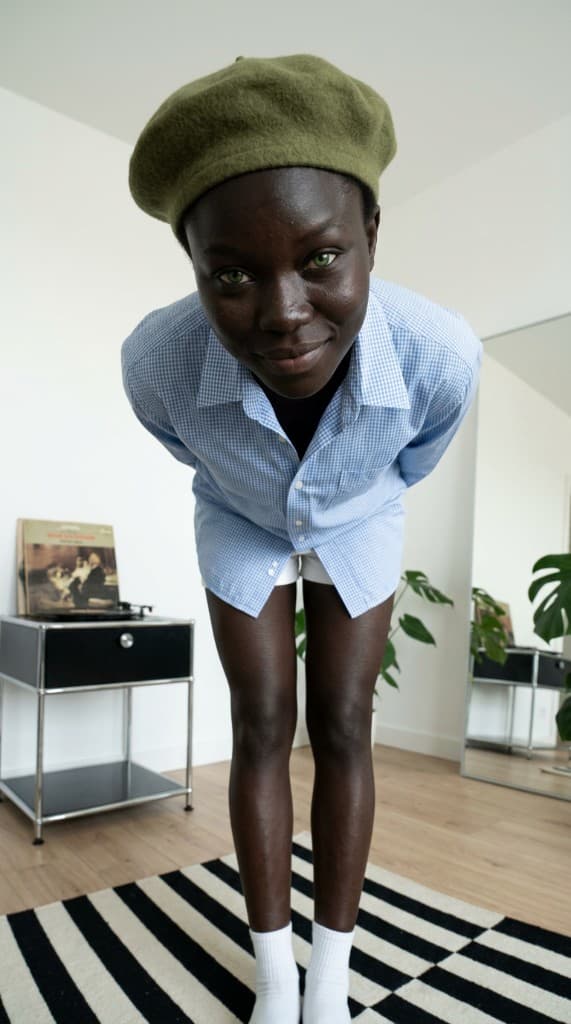
Most Shopify stores launch with half their visual assets missing. The homepage hero is a stock photo. Collection pages have no banners. Product pages have 2–3 images instead of 6–8. Social media accounts are empty. Email sequences have no imagery. And the store owner wonders why conversion rates are below 1%. The truth is that shoppers decide whether to trust your store within 3 seconds—and that decision is almost entirely visual. This guide is the definitive checklist for every image asset your Shopify store needs before you flip the switch to “live.”
Why Visual Completeness Matters for Shopify Launches
Baymard Institute research consistently shows that product imagery is the number one factor shoppers evaluate when deciding whether to buy online. But it goes beyond product pages. Every touchpoint in your store—homepage, collection pages, About page, checkout trust badges, email, and social—either builds or erodes visual trust. Incomplete imagery signals a store that isn't ready, that isn't professional, or that can't be trusted with a credit card number.
Traditional Shopify product photography solves part of this problem at $200–$500 per product for a professional shoot. But a full launch visual library includes far more than product photos: homepage lifestyle scenes, collection banners, About page headshots, email imagery, social content, and ad creative. Hiring photographers and designers to cover every placement can easily run $10,000–$25,000 before your first sale.
AI UGC compresses the entire visual production process into days instead of weeks, at a fraction of the cost. With one AI UGC workflow, you can generate every asset on this checklist—lifestyle imagery, product-in-context shots, team photos, ad creative, and social content—using the same set of AI experts, props, and visual presets. The result is a visually cohesive store that looks like it was produced by a full creative team.
The Complete Visual Asset Inventory
Before diving into each category, here's the full inventory at a glance. Use this as your master checklist—every item should be completed before launch day.
| Asset Category | Image Count | Primary Dimensions | Priority |
|---|---|---|---|
| Homepage heroes & banners | 3–5 | 1920×800px / 1200×600px | Critical |
| Product page photos (per SKU) | 5–8 | 2048×2048px | Critical |
| Collection banners | 1 per collection | 1600×600px | High |
| About page photos | 3–6 | 1200×800px | High |
| Social proof imagery | 6–12 | 1080×1080px | High |
| Email welcome sequence | 5–8 | 600×400px | High |
| Social media launch content | 15–25 | 1080×1080px / 1080×1920px | High |
| Ad creative variants | 15–30 | 1080×1080px / 1080×1920px | High |
| OG images & email headers | 2–4 | 1200×630px / 600×200px | Medium |
For a store launching with 10 products, that's roughly 100–150 images. With traditional photography, that's a multi-week, multi-vendor project. With AI UGC, it's a structured 2–3 day workflow.
1. Homepage Hero Images and Lifestyle Banners
Your homepage hero is the single most important visual in your entire store. It's the first image most visitors see, and it has roughly 3 seconds to communicate who you are, what you sell, and why it matters. A generic stock photo squanders that moment. A lifestyle hero featuring a person using your product in context immediately builds connection.
What to generate
- 1 primary hero image (1920×800px). A lifestyle scene with your flagship product in context. A person using, wearing, or interacting with the product in a setting that matches your brand's aesthetic. This image needs to work with a text overlay—keep the focal point off-center so there's room for headlines and CTAs.
- 2–3 rotating banner variants. Different scenes, experts, or seasonal angles that cycle through your hero carousel. Each should tell a slightly different story—one product-focused, one lifestyle-focused, one aspirational.
- 1 mobile-optimized hero (1080×1080px or 1080×1350px). More than 70% of Shopify traffic is mobile. Your hero needs a square or portrait crop that works on small screens without losing the focal subject.
ppl.studio workflow tip
Use a visual preset with a wide composition style for hero banners. Generate with your primary AI expert holding or using your flagship product, then create variants with different experts for A/B testing. Keep background complexity low—you need clean space for text overlays.
2. Product Page Photos: The Core of Your Shopify Store
Shopify product photography is the backbone of your store's conversion rate. Research from Shopify's own team shows that stores with 5+ product images per listing convert at 2–3× the rate of stores with 1–2 images. Each image type serves a different purpose in the buyer's decision process.
Required images per SKU
| Image Type | Count | Purpose | Specs |
|---|---|---|---|
| Lifestyle hero | 1–2 | Show the product in use, build emotional connection | 2048×2048px, square |
| In-context usage | 1–2 | Show the product in its natural environment | 2048×2048px, square |
| Product-in-hand | 1 | Convey scale, build trust with human element | 2048×2048px, square |
| Detail close-up | 1–2 | Show texture, finish, labeling, craftsmanship | 2048×2048px, square |
| Scale reference | 1 | Show size relative to hand, body, or everyday objects | 2048×2048px, square |
For a deeper look at optimizing every image slot on your product page, see our guide on AI UGC for Shopify product page optimization.
ppl.studio workflow tip
Work through product photography using the batch workflow. Upload all products to the Props Library first, then generate by image type across products rather than generating all images for one product at a time. Generate all lifestyle heroes for all SKUs, then all in-context shots, then all detail close-ups. This approach is faster because you reuse scene settings and expert configurations across the batch.
3. Collection Page Banners and Category Thumbnails
Collection pages are often the highest-traffic pages on a Shopify store after the homepage, especially when you're running ads that link to categories rather than individual products. Yet most stores leave collection pages completely bare—just a grid of product thumbnails with no context, no lifestyle imagery, and no visual storytelling.
What to generate
- 1 banner per collection (1600×600px). A lifestyle image that captures the essence of the collection. For a skincare collection, a person in a bathroom with multiple products visible. For an activewear collection, an action scene. The banner should work as a wide strip with room for the collection title.
- Category navigation thumbnails (800×800px). If your homepage features a “Shop by Category” grid, each category needs a square thumbnail. Use consistent composition—same lighting style, same background treatment—so the grid looks intentional, not random.
- Featured collection hero (1200×600px). If you highlight a featured collection on your homepage or in a promotional section, it needs a larger, higher-impact image that draws attention.
ppl.studio workflow tip
Use the same visual preset across all collection banners to maintain a unified look. Vary the AI expert and scene per collection, but keep the lighting, color grading, and composition style consistent. This creates a cohesive browsing experience as shoppers navigate between collections.
4. About Page Team and Founder Photos
Your About page is a trust page. Shoppers visit it when they're on the fence—they want to know who's behind the brand before committing. A blank About page or one with placeholder text and no imagery is a conversion killer. Professional team photos signal that real people stand behind the product.
What to generate
- 1–2 founder/team lifestyle images (1200×800px). Show the team in their working environment—packing orders, testing products, or collaborating. These aren't stiff corporate headshots; they're candid, warm, and authentic.
- 1–2 professional headshots per team member (800×800px). Clean, consistent headshots for the team grid. Same lighting, same background, same crop. See our AI headshots guide for the full setup.
- 1–2 brand story images (1200×800px). Images that illustrate your origin story or brand mission. If your brand was born from a personal problem, show that context. If sustainability matters, show the process.
ppl.studio workflow tip
Create dedicated AI experts for your About page that match your actual team demographics. Use a clean, professional visual preset with soft natural lighting. Generate multiple poses and expressions, then select the ones that feel most natural and approachable. Consistency across all team photos is more important than any individual image.
5. Social Proof Imagery
Social proof is the most powerful conversion lever on your Shopify store. But written reviews alone aren't enough—shoppers increasingly expect visual reviews, user-generated photos, and customer testimonial content. For a new store launching with zero reviews, AI UGC fills this critical gap.
What to generate
- 6–8 customer-style lifestyle photos (1080×1080px). Diverse AI experts using your product in everyday settings. These should look like genuine UGC—slightly casual, natural lighting, real-world backgrounds. Avoid anything that looks too polished or staged.
- 2–4 testimonial background images (1200×400px). Lifestyle images that serve as backgrounds for testimonial quote cards. These need to be slightly desaturated or blurred enough that overlaid text remains readable.
- Community gallery grid content (1080×1080px). If your theme supports a “customers love this” or Instagram-feed-style gallery section, you need 8–12 images that look like they came from different real customers.
For a deep dive on social proof visuals, see our guide on creating social proof content with AI UGC.
ppl.studio workflow tip
Use 4–6 different AI experts for social proof imagery. The diversity is what makes it believable—if every “customer photo” features the same person, the illusion breaks. Vary the scene settings too: some at home, some outdoors, some at a desk. Apply a slightly warmer, less polished visual preset than you use for product pages to achieve the authentic UGC feel.
6. Email Welcome Sequence Images
Your email welcome sequence is the highest-engagement email you'll ever send. Open rates of 50–80% are common for welcome emails. But most Shopify stores launch with text-only emails or, worse, no welcome sequence at all. Every email in your launch sequence needs at least one compelling image.
Typical launch email sequence
| Image Needed | Specs | |
|---|---|---|
| Welcome / Brand intro | Hero lifestyle image, founder photo | 600×400px |
| Product spotlight | Product-in-context lifestyle image | 600×400px |
| Social proof / Reviews | Customer-style UGC image | 600×400px |
| Discount / Incentive | Product lifestyle with urgency framing | 600×400px |
| Abandoned cart | Product-in-hand or usage reminder image | 600×300px |
ppl.studio workflow tip
Generate email images at 1200×800px (2× resolution), then compress and resize for email delivery. This ensures sharp rendering on Retina displays. Use the same AI expert across your welcome sequence for narrative consistency—it feels like one person guiding the new subscriber through the brand.
7. Social Media Launch Content
Your Shopify store launch should be accompanied by a coordinated social media rollout. An empty social profile with zero posts destroys trust instantly—shoppers check your Instagram or TikTok before buying, and a brand-new account with no content raises red flags. Generate enough content to fill at least 2 weeks of posts before launch.
Platform-specific requirements
| Platform | Content Types | Dimensions | Min. Launch Set |
|---|---|---|---|
| Instagram Feed | Lifestyle, product flat lays, carousels | 1080×1080px / 1080×1350px | 9–12 posts |
| Instagram Stories / Reels | Product reveals, usage demos, behind-the-scenes | 1080×1920px | 5–8 pieces |
| TikTok | Unboxing-style, product demos, talking head | 1080×1920px | 3–5 videos |
| Lifestyle images, product highlights, reviews | 1200×630px / 1080×1080px | 5–8 posts | |
| Product styling, lifestyle scenes, infographic pins | 1000×1500px | 5–10 pins |
Content calendar for launch week
- Day −7 to −3 (Pre-launch teasers): Behind-the-scenes imagery, product close-ups, countdown-style content. Build anticipation without revealing everything.
- Day −2 to −1 (Reveal): Full product lifestyle images, founder story post, “coming soon” announcement with launch date.
- Launch day: Hero product announcement, “we're live” post with link to store, Stories/Reels product showcase, launch-day special offer.
- Day +1 to +7 (Post-launch): Customer testimonial-style content, product education, use-case stories, collection highlights. Keep the momentum going with daily posts.
For more detail on structuring your launch social plan, see our post on AI UGC for Shopify stores and our guide on building a content calendar with AI UGC.
ppl.studio workflow tip
Use Storyboards to plan your launch week content as a visual sequence. Map out each day's posts, assign AI experts and scenes, then batch-generate the full 2-week content set in a single session. For TikTok and Reels, use the Animate feature to turn static AI expert images into talking-head videos with product demos and launch announcements.
8. Ad Creative for Launch Campaigns
Most Shopify store launches rely on paid acquisition from day one. Whether you're running Meta Ads, TikTok Ads, or Google Shopping, you need enough creative variants to test and find winners before your budget runs out. The number one reason launch ad campaigns fail isn't targeting—it's creative fatigue from running the same 2–3 images.
Minimum ad creative set
- 10–15 static image ads (1080×1080px and 1080×1350px). Vary the AI expert, scene, and composition across each variant. Each image should test a different hook or angle: product benefit, social proof, lifestyle aspiration, problem-solution.
- 3–5 carousel sets (3–5 images per set). Tell a sequential story: problem, solution, product, benefit, social proof. Or showcase different products, use cases, or features across the carousel frames.
- 5–10 Story/Reels ad images (1080×1920px). Vertical-format creative for Meta Stories, Instagram Reels, and TikTok In-Feed. These should feel native to the platform—casual, direct, and UGC-style.
- 3–5 animated/video ads. Use AI expert talking-head videos for testimonial-style ads. These consistently outperform static images on TikTok and Meta Reels placements.
For platform-specific creative strategies, see our posts on creating AI product photos that convert and our guide on AI UGC for Meta Advantage+ campaigns.
Creative testing matrix
Structure your ad creative around a testing matrix. For a launch with 3 products, 3 AI experts, and 3 scene types, that's 27 possible combinations—more than enough to find winners. Here's a simplified example:
| Variable | Option A | Option B | Option C |
|---|---|---|---|
| AI Expert | Young professional | Active lifestyle | Casual everyday |
| Scene | Home environment | Outdoor/active | Urban/street |
| Angle | Product benefit | Social proof | Lifestyle aspiration |
ppl.studio workflow tip
Generate all ad creative in a dedicated batch session, separate from your product page imagery. Use the shot list approach to plan every variant before generating. For each variant, produce 2–3 options so you can select the strongest. Export at the highest resolution available—platform-specific downsizing is handled at upload.
9. Favicon, OG Images, and Email Headers
These are the “forgotten” assets that most stores skip until someone shares a link and the preview looks broken. They're small but visible in high-traffic moments: social sharing, Google search results, email inboxes, and browser tabs.
Technical asset checklist
- Open Graph image (1200×630px). This is the image that appears when someone shares your store's URL on Facebook, LinkedIn, Twitter, or in chat apps. Use a lifestyle image with your brand name or logo subtly present. Create one for your homepage and optionally one for each major collection page.
- Twitter/X card image (1200×600px). Similar to OG but with a slightly different aspect ratio for optimal Twitter rendering.
- Email header graphic (600×200px). A branded banner that appears at the top of every email. Include your logo or wordmark over a subtle lifestyle background.
- Favicon (512×512px master). While this is typically your logo mark rather than a generated image, having a clean 512px source file ensures sharp rendering across devices and bookmark bars.
ppl.studio workflow tip
Repurpose your best homepage hero image for OG images. Crop to the required dimensions and add a slight color overlay if you need space for logo placement. Generate OG images alongside your homepage heroes so the visual language is perfectly consistent.
10. Post-Launch Content Pipeline Setup
Launch day is the starting line, not the finish line. The stores that succeed long-term are the ones that maintain a consistent visual content pipeline after launch. The good news: the infrastructure you built for launch—AI experts, product props, visual presets, shot list templates—makes ongoing production dramatically easier.
Weekly content cadence
- 5–10 new ad creative variants per week. Fresh creative combats ad fatigue. Rotate new AI experts, scenes, and angles into your ad account weekly. This is the single highest-ROI use of your post-launch content time.
- 3–5 social media images per week. Keep your organic social profiles active with a mix of lifestyle content, product education, and community-style UGC. Use your content calendar to plan themes and batch-generate a full month in one session.
- 1–2 email images per week. Every promotional email, product update, or nurture email benefits from a fresh lifestyle image. Build a library that your email team can pull from on demand.
Monthly and quarterly refreshes
- Monthly: Review product page imagery. Replace underperforming images with new variants. Add imagery for any new SKUs. Check for collection pages that need banner updates.
- Quarterly: Seasonal content refresh. Generate imagery that reflects the current season—spring florals, summer outdoor scenes, fall warmth, winter cozy interiors. See our seasonal content planning guide for the full playbook.
- Per product launch: Every new product should go through a mini version of this entire checklist. Use the shot list guide to plan, then generate the full set before the product goes live.
ppl.studio workflow tip
Set up a recurring weekly generation session. Block 1–2 hours every Monday to produce that week's content across all channels. Because your AI experts, props, and presets are already configured from launch, a weekly session can produce 20–30 images in under an hour. The consistency of regular production compounds—after 3 months, you'll have hundreds of assets that can be mixed, matched, and redeployed across channels.
The 3-Day Launch Production Timeline
Here's a realistic timeline for producing your entire Shopify store visual library with AI UGC. This assumes a store with 5–15 products launching with ads on Meta and organic presence on Instagram and TikTok.
Day 1: Foundation (3–4 hours)
- Photograph all products on clean backgrounds and upload to Props Library
- Create 4–6 AI experts that match your target customer demographics
- Select 2–3 visual presets that align with your brand aesthetic
- Build your shot list matrix using this checklist as a template
Day 2: Core generation (4–5 hours)
- Generate all product page imagery (batch by image type)
- Generate homepage heroes and collection banners
- Generate About page and team photos
- Generate social proof and testimonial imagery
Day 3: Marketing assets (3–4 hours)
- Generate ad creative variants (static, carousel, and video)
- Generate email welcome sequence images
- Generate 2 weeks of social media content
- Create OG images and email headers
- Quality control pass on all assets using the QC checklist
- Export, organize, and upload to Shopify, ad platforms, and email tool
Total: 10–13 hours of active work across 3 days. Compare that to the 3–6 weeks and $10,000–$25,000 typical of hiring photographers, designers, and content creators separately for each asset category.
Common Mistakes to Avoid
After working with hundreds of Shopify store launches, here are the visual asset mistakes we see most often:
- Launching with placeholder images. “We'll update the photos later” is the most expensive decision you can make. Your conversion rate during launch week sets the tone for your ad algorithms, your SEO rankings, and your cashflow. Launch with complete imagery or delay the launch.
- Using inconsistent visual styles. A homepage hero with warm golden lighting, product pages with cool blue tones, and social content with high-contrast filters creates a disjointed experience. Pick one visual preset family and use it everywhere.
- Forgetting mobile dimensions. More than 70% of Shopify traffic is mobile. If your hero banners, collection images, and ad creative only look good on desktop, you're alienating your largest audience segment. Generate mobile-specific crops for every key placement.
- Skipping social proof imagery. New stores without reviews are fighting an uphill trust battle. AI UGC social proof content bridges the gap until real customer reviews accumulate. Don't wait—generate it for launch.
- Not planning for ad creative volume. Launching with 3 ad images means you'll hit creative fatigue within the first week. Start with 15–30 variants and have a pipeline for generating more weekly.
- Ignoring the About page. Shoppers check your About page when they're deciding whether to trust you. An empty or stock-photo About page is a silent conversion killer.
Putting It All Together
This checklist represents the complete visual asset set for a professional Shopify store launch. Not every store will need every item on the list—if you're not running Pinterest ads, skip the pin-specific content. If you're a solo founder, you might not need 6 team headshots. But the framework holds: before going live, audit every customer-facing touchpoint and make sure it has purpose-built imagery.
The compounding advantage of using AI UGC for your launch is that you're not just producing images—you're building a content production infrastructure. The AI experts, product props, visual presets, and shot list templates you create for launch become the foundation for every future content session. Your second month of content takes half the time of your first. By quarter two, you're producing more visual content than competitors who are still booking photographers.
Start with the critical items—product page photos and homepage heroes—and work down the priority list. Use the 3-day timeline as your production guide. And remember: a visually complete store doesn't just look better. It converts better, retains better, and scales better.
Launch your Shopify store with every visual asset covered
Product pages, collection banners, ad creative, email imagery, and social content—generate your entire launch visual library in one workflow.
Start free with ppl.studio10 free photos · no credit card required
Founder of ppl.studio. Building AI tools for product marketing teams who need visual content at scale without the production overhead.